Search What Is Available in Benchpark and Ramble
Glossary terms: Benchmark, Variant, Experiment, System, Modifier
Benchpark
All of the systems, benchmarks, experiments, and modifiers that are available in
Benchpark can be searched on the command line. The benchpark list command accepts
one of four categories:
~]$ benchpark list {benchmarks,experiments,modifiers,systems}
The Benchpark Catalogue shows detailed information on Benchpark Systems and Benchpark Experiments in tabular form.
Use the filter to find experiments with your targeted programming model or specific type of scaling. For example, this command will display only the CUDA experiments:
~]$ benchpark list experiments --experiment cuda
We can also search for systems:
~]$ benchpark list systems
After choosing a system or experiment, inspect its variants and configuration details:
~]$ benchpark info system fluxtainer-aws
~]$ benchpark info experiment hpl
For a complete command reference, see Benchpark Commands.
Ramble
Ramble is primarily controlled through the ramble command. Whenever you want to see
available commands or learn about command-specific flags, you can use Ramble’s built-in
help system.
To view the most common commands and global flags:
$ ramble --help
To see the complete list of all Ramble commands grouped by category (including developer, configuration, and workspace commands):
$ ramble help --all
Any command or subcommand accepts --help (or -h) to display detailed usage
information. For example, to explore the options for ramble list or ramble
workspace:
$ ramble list --help
$ ramble workspace --help
Listing and Searching Objects (ramble list)
Listing Applications
To see all applications currently available in your configured Ramble repositories, run:
$ ramble list
By default, ramble list prints every available application. You can narrow the
results by providing one or more case-insensitive filter arguments.
Substring and Glob Filtering
Passing a plain word searches for any application whose name contains that substring.
For example, to list all applications containing the letter h:
$ ramble list h
which produces:

You can also use shell glob characters such as * and ? (wrapped in quotes so
your shell does not expand them before passing them to Ramble). For example, to list
only applications whose names start with h:
$ ramble list "h*"
which produces:

Searching Descriptions
If you know the domain or functionality you are looking for rather than the exact
application name, add the -d (--search-description) flag to search both
application names and docstrings/descriptions:
$ ramble list -d "molecular dynamics"
Filtering by Tags
Every object in Ramble can be annotated with descriptive tags (information on how to see
what tags are available will be provided later in this tutorial). You can filter
ramble list by tag using -t (--tags):
$ ramble list -t test-app
which outputs:

Listing Other Object Types
To list objects other than applications, pass --type <object_type> to ramble
list.
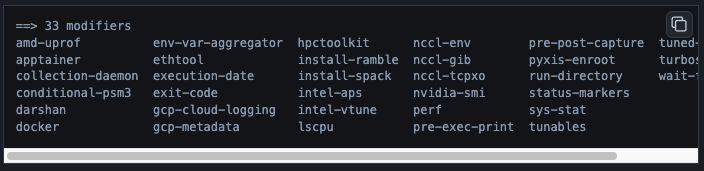
For example, to list all available modifiers:
$ ramble list --type modifiers
which produces:
To list all available package managers:
$ ramble list --type package_managers

And to list all available workflow managers:
$ ramble list --type workflow_managers

Inspecting Object Details (ramble info)
Once you have identified an application or modifier of interest using ramble list,
use ramble info to inspect its structure, workloads, tunable variables, software
specs, and figures of merit.
Viewing an Application Summary
Let’s inspect the hostname application:
$ ramble info hostname
This command prints a comprehensive overview of the hostname application:
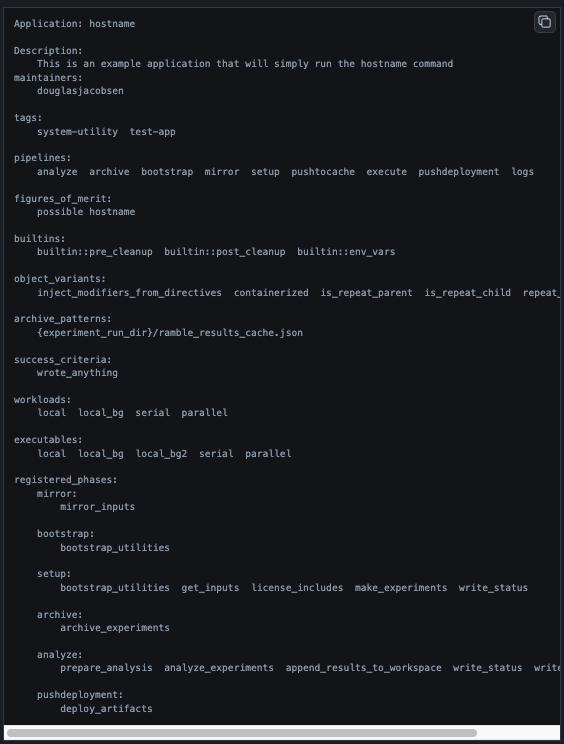
From this output, you can see:
Description: What the application does.
Tags: Metadata tags associated with the application (
test-app).Workloads: Named execution scenarios supported by the application (
local,parallel,serial), along with their associated executables and inputs.Figures of Merit: Performance or validation metrics that Ramble automatically extracts when analyzing experiment output (
possible hostname).Success Criteria: Conditions Ramble checks to determine whether an experiment succeeded (
wrote_anything).Builtin Executables: Internal steps injected into the execution pipeline (
builtin::env_vars). These are defined in either the application definition, or one of it’s ancestors.
Viewing Attribute Overviews and Filtering Attributes
Complex applications (such as gromacs or wrf) define many workloads, variables,
and software specs. To see a quick summary of which attribute categories are populated
on an object without printing all of their contents, use -o (--overview):
$ ramble info hostname -o
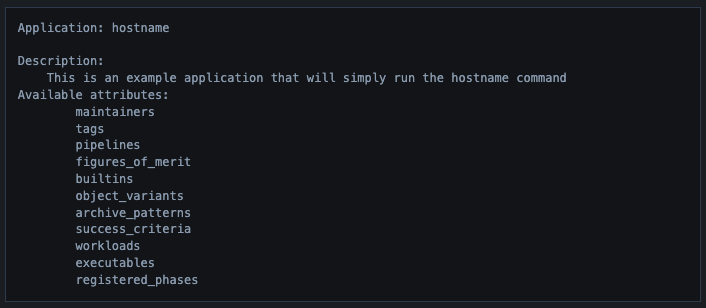
You can then inspect one or more specific attributes using --attrs (or
--attributes) and request verbose details (such as workload variables and defaults)
using -v (--verbose):
$ ramble info hostname --attrs workloads -v
which produces:
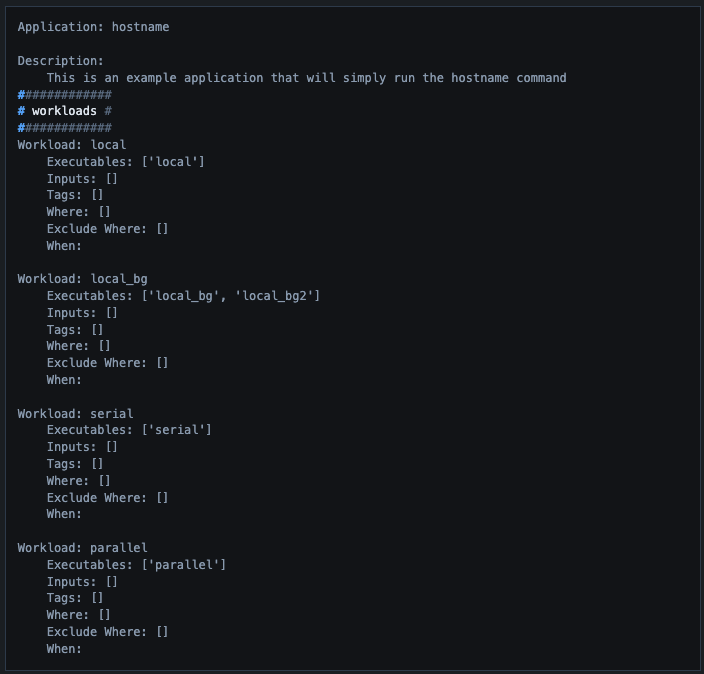
Notice how adding -v reveals the Variables defined on each workload (such as
input_arguments, n_ranks, and n_threads), along with their default values
and descriptions.
You can also filter the items shown within an attribute section using -p
(--pattern) with a glob pattern. For example, to view only workload matching
water* on gromacs:
$ ramble info gromacs --attrs workloads -p "water*"
or;
$ ramble info gromacs --attrs workloads -p "water*" -v
Inspecting Modifiers and Other Objects
Just like ramble list, ramble info can inspect any object type using --type
<object_type> or a fully qualified namespace spec (such as builtin.mod.<name>).
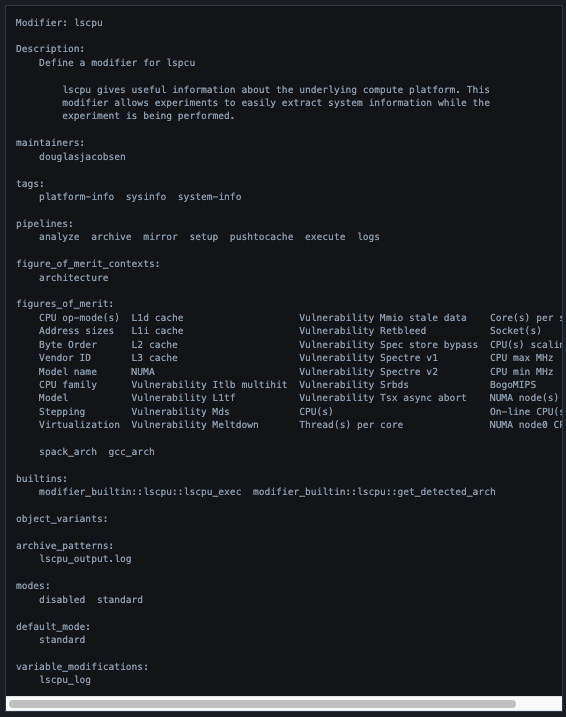
For example, to inspect the lscpu modifier:
$ ramble info --type modifiers lscpu
or equivalently:
$ ramble info builtin.mod.lscpu
which produces:
For more information, see Ramble Basics.