Gradio Mode
What is Gradio?
Gradio is an open-source Python library that lets you quickly build and launch interactive web applications for machine learning models and other Python functions. In the context of MADA, Gradio provides a browser-based chat interface, allowing users to interact with agent groups visually and intuitively.
Why Use Gradio Mode Over CLI Mode?
Gradio may be preferred over CLI output for several reasons:
- User-Friendly Interface: Gradio offers a clean, graphical chat window, making it easier for users to read, compose messages, and view agent responses.
- Rich Interaction: Gradio supports features like buttons, file uploads, and customizable layouts, enhancing the user experience beyond plain text.
- Collaboration: The web interface can be accessed remotely or shared with others, enabling collaborative sessions.
- Visualization: Results and outputs can be displayed in a more organized and visually appealing manner, which is especially helpful for complex workflows.
In summary, Gradio mode is ideal for users who prefer graphical interfaces, need to collaborate, or want a more interactive experience than the traditional command-line interface.
Starting Gradio Mode
In order to tell MADA to use Gradio mode, pass in the run mode to the CLI command:
When this runs, you'll see output similar to the following in the console:

HPC Users
To access the Gradio interface from your local machine, open a terminal on your local machine and set up an SSH tunnel:
Example:
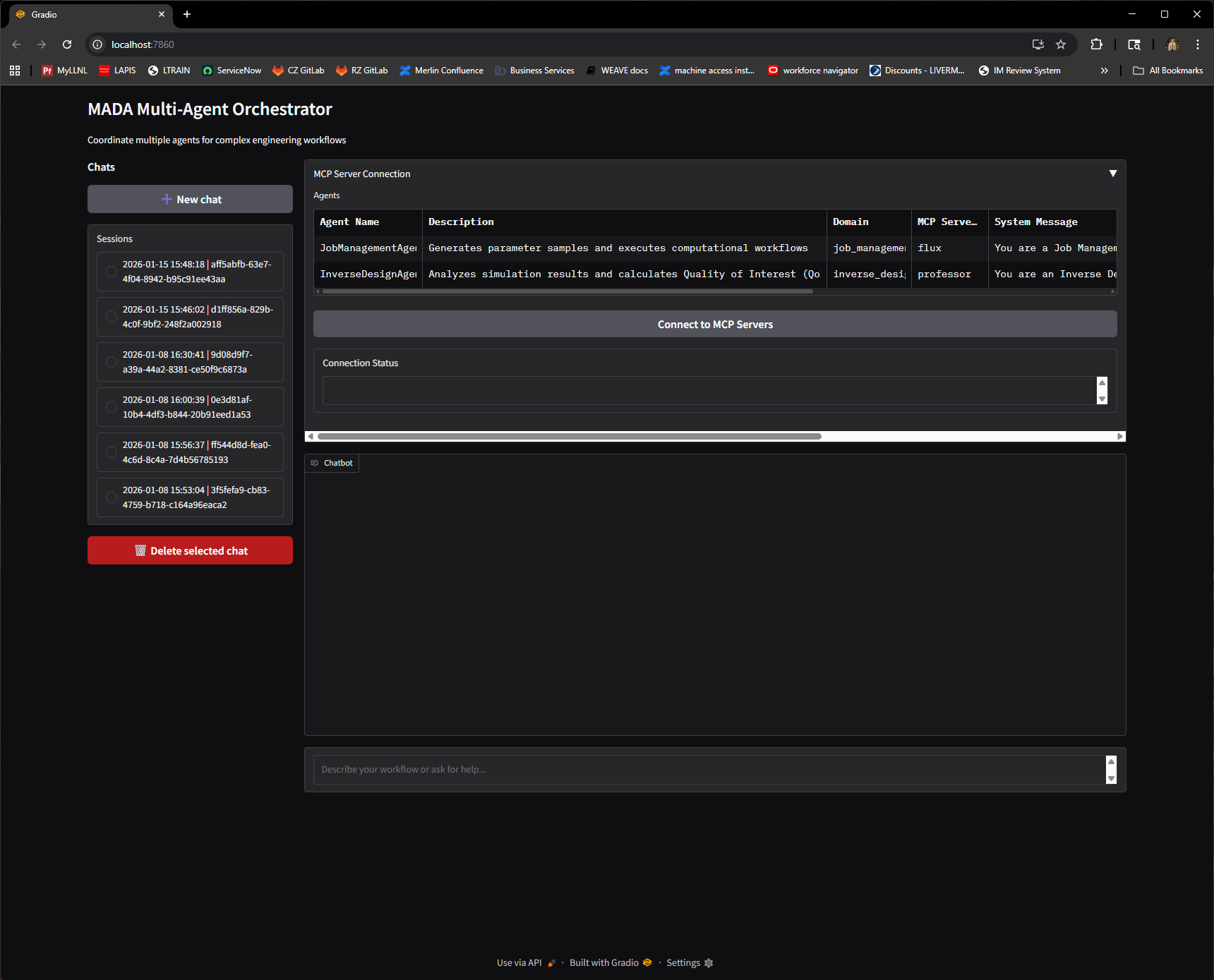
Copy the URL that's shown in the console output and paste it into a browser window. This will load a locally hosted Gradio interface that looks similar to the following:
Seeing Timeouts? Use Safari!
If you're seeing timeout issues, it's recommended to use the Safari web browser.
Using the Interface
Once the window is loaded, open the connection accordion dropdown labeled "Connect to MCP Servers" if it's not already open. This will show every agent that you've provided in your configuration, a button saying "Connect to MCP Servers", and an empty "Connection Status" box.
Click the "Connect to MCP Servers" button to start the MCP servers for your agents. Once this finishes, you'll see the "Connection Status" box be populated with information about your agents and the MCP tools that were found. Below is an example of this:
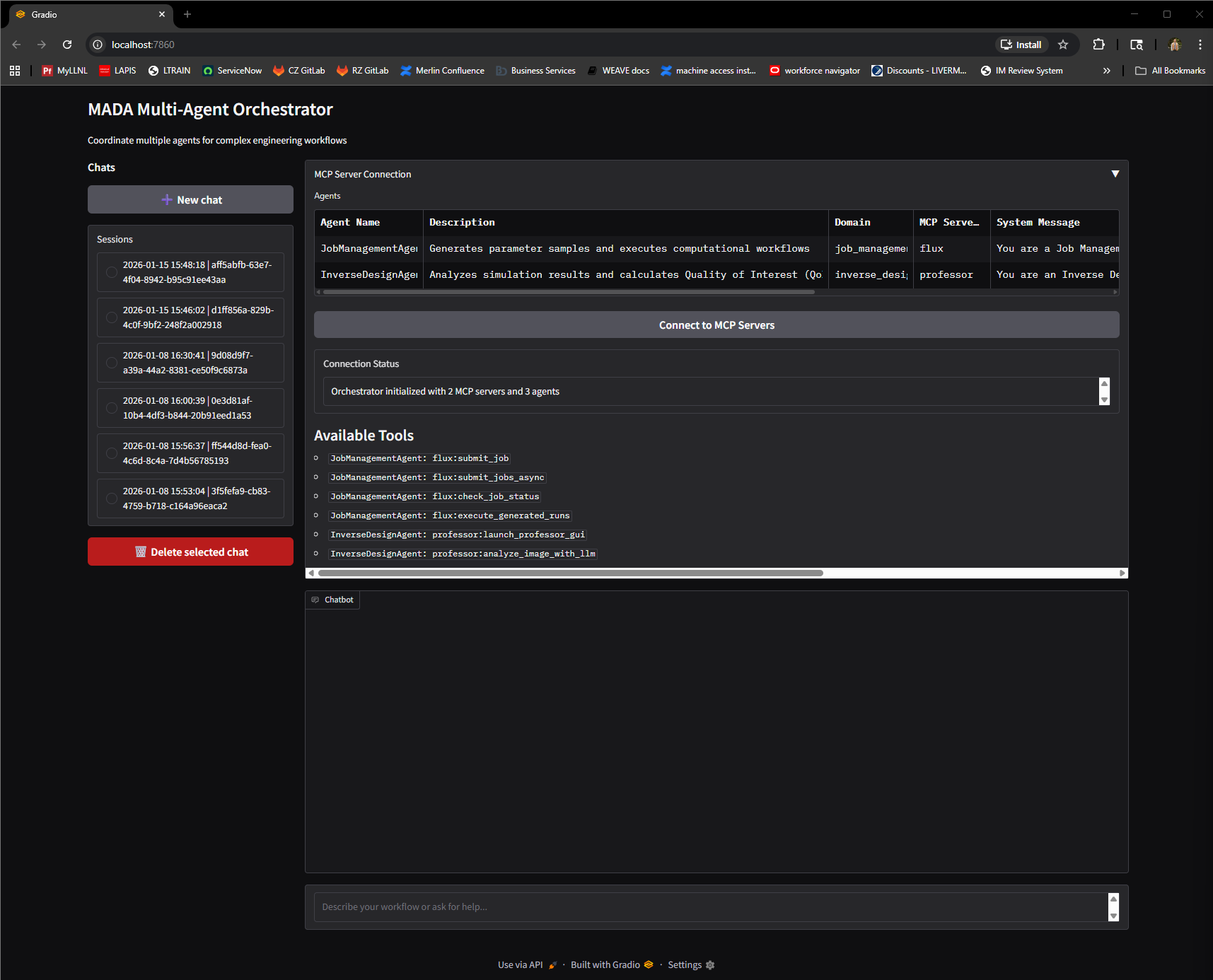
Now that your agents are connected, you're free to start entering prompts into the chat box!
If your configuration uses magentic orchestration, the Gradio interface still shows the active specialist agents in the table. The hidden Magentic manager is not displayed as a participant, and only the final assistant answer is streamed back into the chat UI.
Managing Chat Histories
When you chat with agents, the history for that chat session is stored in a configurable database (see Database Configuration).
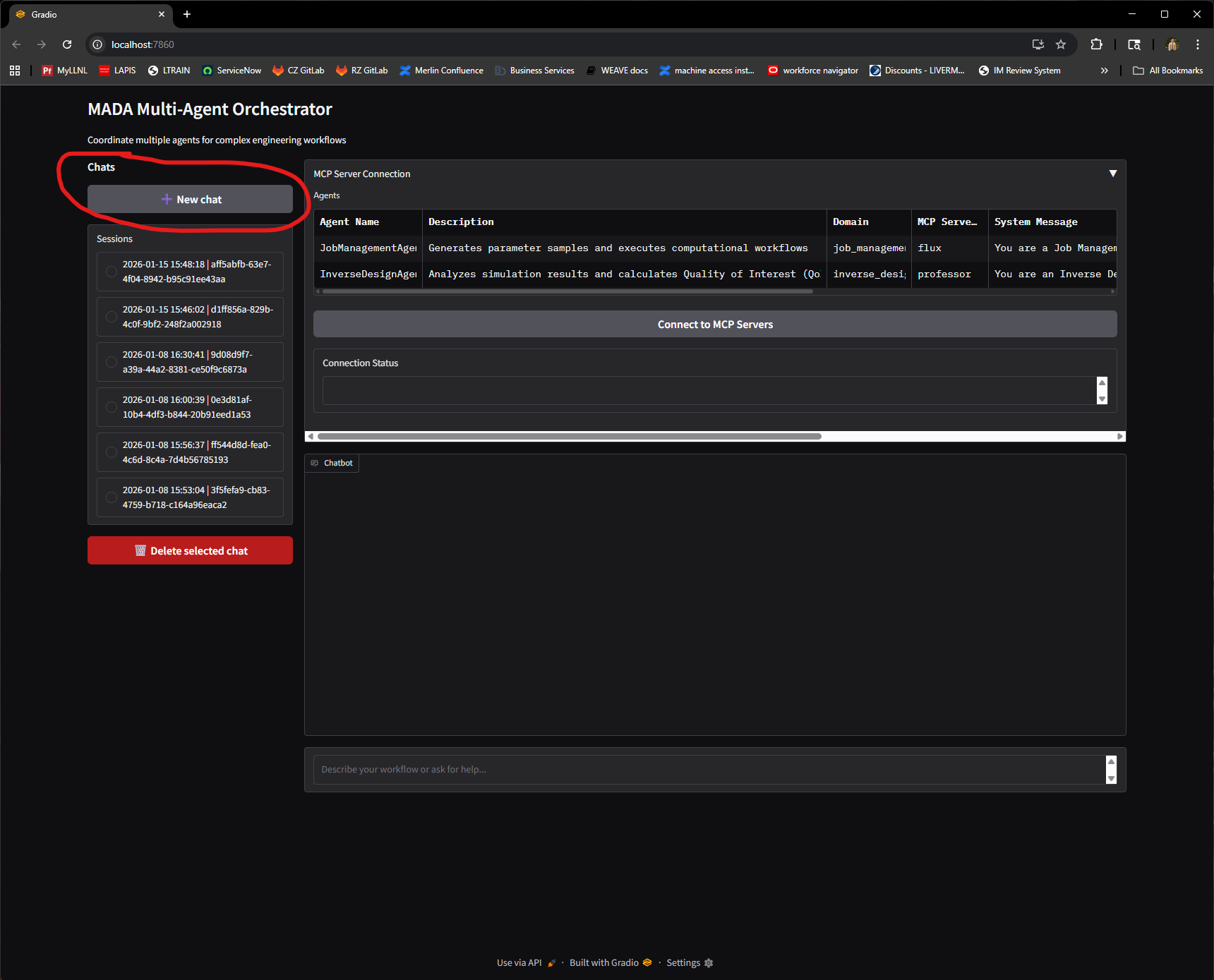
To create a new chat, either start typing in the empty chat window on the right when the Gradio app first starts, or click the "New chat" button at the top left of the screen:
Existing chat histories are loaded and displayed as a list on the left side of the screen:
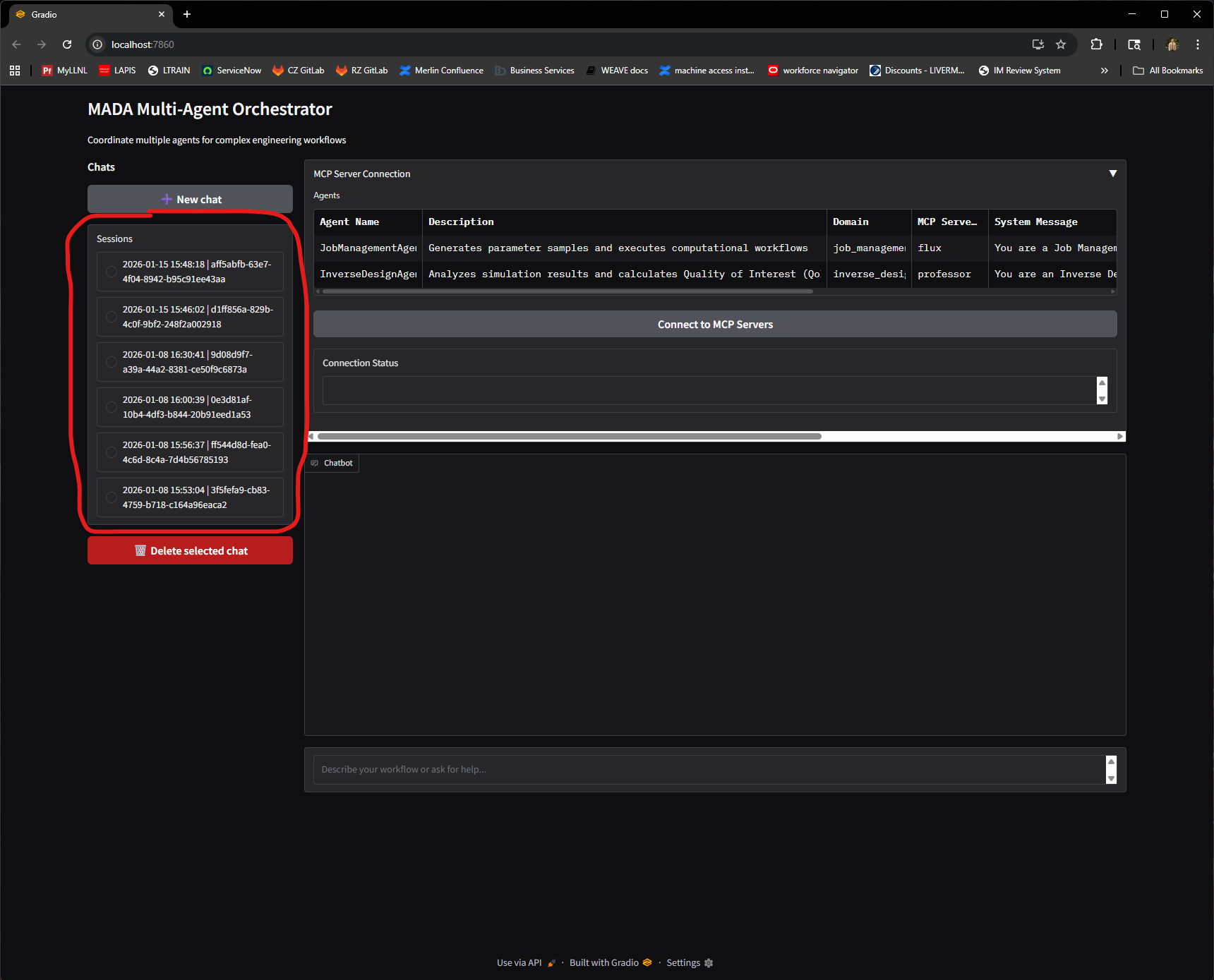
To resume a previous conversation, select a chat from this list; its history will be loaded so you can pick up where you left off.
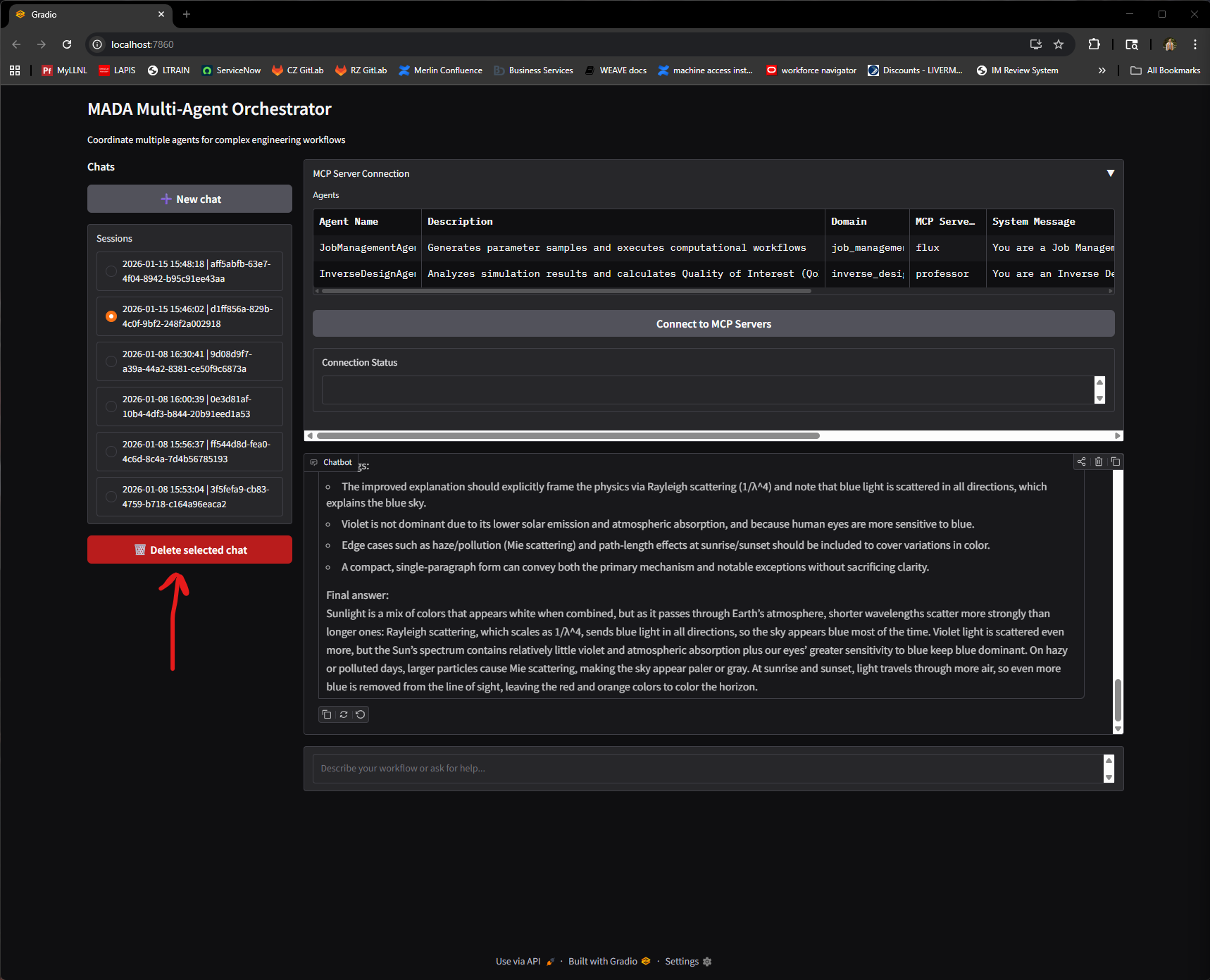
To delete a chat session, first select it from the list on the left, then click the "Delete selected chat" button:
Customizing the Interface
The appearance and behavior of the Gradio interface in MADA can be tailored to your needs. This configuration allows you to adjust titles, descriptions, placeholders, and various layout elements to create a more personalized and user-friendly experience.
To update the interface configuration use the "interface" key:
For full customization options, see the Gradio Interface Configuration page.