CLI Mode
What is CLI Mode?
CLI (Command-Line Interface) mode allows you to run MADA entirely from your terminal or command prompt. In this mode, you interact with agent groups using text-based commands and prompts, making it ideal for users who prefer keyboard-driven workflows or need to operate in environments without graphical support.
Why Use CLI Mode Over Gradio Mode?
CLI mode may be preferred over Gradio mode for several reasons:
- Efficiency: CLI mode is lightweight and consumes minimal resources, making it suitable for remote servers, HPC clusters, or headless systems.
- Direct Control: Provides granular control over agent interactions, useful for advanced users and debugging.
- No Graphical Dependencies: Perfect for environments where web browsers or GUIs are unavailable or undesirable.
In summary, CLI mode is ideal for users who value speed or are working in terminal-only environments.
Using CLI Mode
To start MADA in CLI mode, use the following command and specify the configuration file:
When you run this command, MADA first shows a session management prompt:
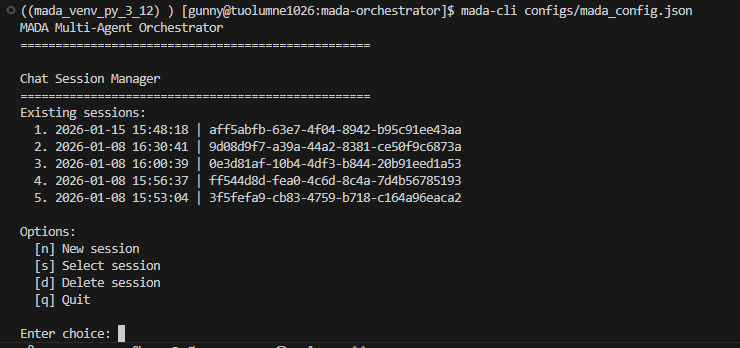
To create a new session, type n and press Enter. This creates a new session using the configuration you provided, lists the available tools, then asks you for a prompt to send to the agents:
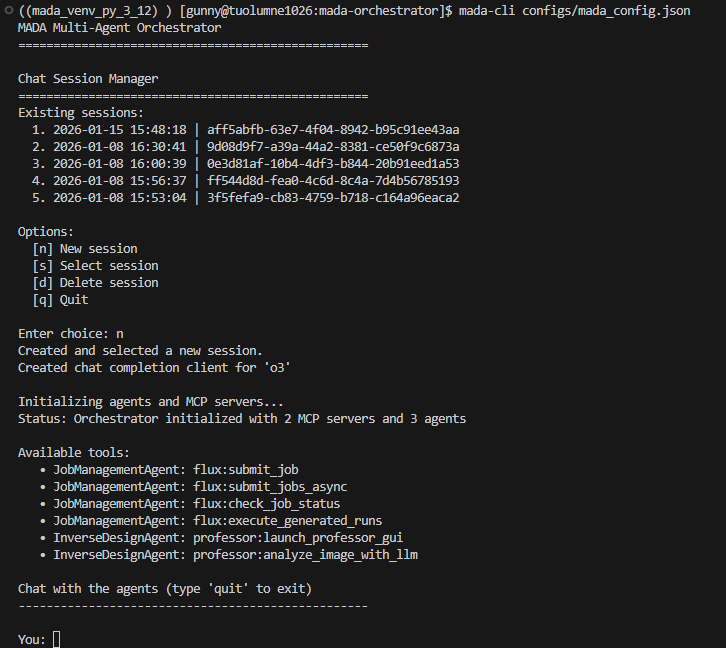
From here you can continue the conversation for as long as you like.
Session Management
As described in the previous section, when you start MADA in CLI mode you first see a session management prompt. In that section we covered how to start a new session; here we describe the other options.
To resume a previous conversation, type s and press Enter. You will then be prompted to enter a number from the list of existing sessions:
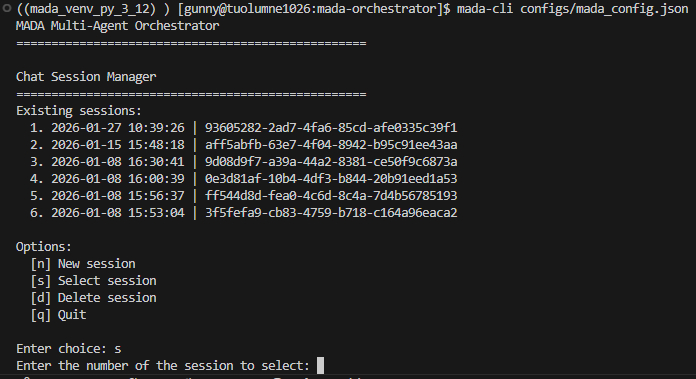
After you enter a number, the history for that session is loaded so you can pick up where you left off.
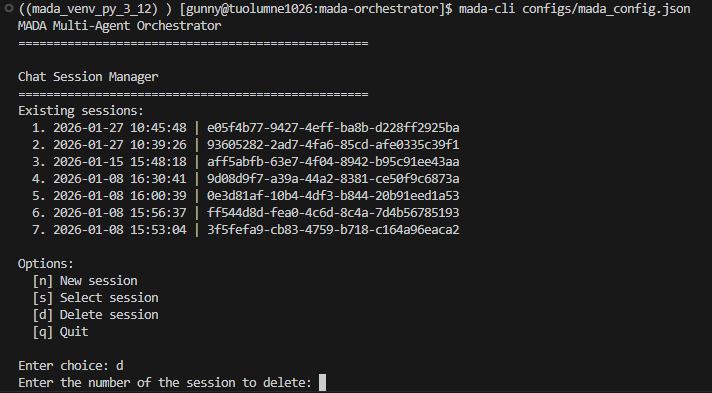
To delete a session, type d and press Enter at the initial session management prompt shown when you start MADA in CLI mode. As with selecting a session, you will then be prompted to enter a number from the list of existing sessions: