Server Management
Before using any MADA applications, you must ensure that the required MCP servers are running. This page describes how to manage your MCP servers through CLI commands.
Starting Servers
Servers can be started with the mada-tools start-servers command. This command requires that you provide a configuration file to define:
- Which servers you want to start
- Where each server should be started
Once the configuration file has been provided, you can choose whether to start all servers in the file or a subset of them. To start all servers, just pass in the configuration file:
To start a subset of servers, use the -s or --servers flag. For example:
Here, server1 and server2 must be defined in my_config.json.
When servers are started, their state is tracked in a state file. To write this state to a specific file, use the -f or --state-file flag. For example:
Starting All Servers in this Repo
All of the available servers for the MADA Tools repository are defined in configs/development.json from the top of the repository. This file looks like so:
{
  "servers": {
    "flux": {
      "host": "localhost",
      "port": 8101,
      "transport": "streamable-http",
      "env_vars": {
        "FLUX_HANDLE": "default",
        "FLUX_USE_PERSISTENT_EXECUTOR": "true",
        "SPINDLE_FLUXOPT": "disable",
        "LD_LIBRARY_PATH": "/opt/cray/pe/cce/20.0.0/cce/x86_64/lib:/opt/cray/pe/lib64:/opt/cray/lib64:/opt/cray/pe/papi/7.2.0.2/lib64"
      }
    },
    "slurm": {
      "host": "localhost",
      "port": 8102,
      "transport": "streamable-http"
    },
    "professor": {
      "host": "localhost",
      "port": 8105,
      "transport": "streamable-http",
      "env_vars": {
        "API_KEY": "${API_KEY}",
        "MODEL": "${MODEL:-gpt-5}",
        "PROF_VIS_PATH": "/usr/workspace/prof/bin/prof-vis",
        "API_BASE_URL": "${API_BASE_URL:-https://livai-api.llnl.gov}"
      }
    },
    "job_monitor": {
      "host": "localhost",
      "port": 8106,
      "transport": "streamable-http",
      "_comment": {
        "MONITOR_LOG_TAIL_BYTES": "number of bytes of each log file the monitoring tool should return",
        "MONITOR_DEFAULT_STATUS_DEPTH": "how many status entries the monitor should inspect before summarizing"
      },
      "env_vars": {
        "MONITOR_LOG_TAIL_BYTES": "50000",
        "MONITOR_DEFAULT_STATUS_DEPTH": "20"
      }
    },
    "vertex_cfd": {
      "host": "localhost",
      "port": 8107,
      "transport": "streamable-http",
      "env_vars": {
        "VERTEX_CFD_PATH": "/usr/workspace/mada/vertex-cfd/tuo/vertexcfd-installation/"
      }
    }
  },
  "logging": {
    "level": "INFO",
    "format": "%(asctime)s - %(name)s - %(levelname)s - %(message)s"
  }
}
We'll use this file to start every MCP server:
After running this command we should see output similar to the following:
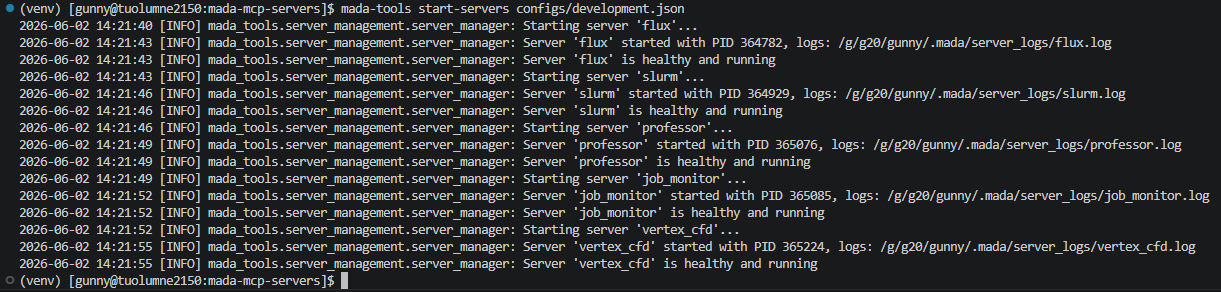
From here, you can use the servers-status command to check the status of the servers. More on this command can be found here.
Starting Just SLURM
All of the available servers for the MADA Tools repository are defined in configs/development.json from the top of the repository. This file looks like so:
{
  "servers": {
    "flux": {
      "host": "localhost",
      "port": 8101,
      "transport": "streamable-http",
      "env_vars": {
        "FLUX_HANDLE": "default",
        "FLUX_USE_PERSISTENT_EXECUTOR": "true",
        "SPINDLE_FLUXOPT": "disable",
        "LD_LIBRARY_PATH": "/opt/cray/pe/cce/20.0.0/cce/x86_64/lib:/opt/cray/pe/lib64:/opt/cray/lib64:/opt/cray/pe/papi/7.2.0.2/lib64"
      }
    },
    "slurm": {
      "host": "localhost",
      "port": 8102,
      "transport": "streamable-http"
    },
    "professor": {
      "host": "localhost",
      "port": 8105,
      "transport": "streamable-http",
      "env_vars": {
        "API_KEY": "${API_KEY}",
        "MODEL": "${MODEL:-gpt-5}",
        "PROF_VIS_PATH": "/usr/workspace/prof/bin/prof-vis",
        "API_BASE_URL": "${API_BASE_URL:-https://livai-api.llnl.gov}"
      }
    },
    "job_monitor": {
      "host": "localhost",
      "port": 8106,
      "transport": "streamable-http",
      "_comment": {
        "MONITOR_LOG_TAIL_BYTES": "number of bytes of each log file the monitoring tool should return",
        "MONITOR_DEFAULT_STATUS_DEPTH": "how many status entries the monitor should inspect before summarizing"
      },
      "env_vars": {
        "MONITOR_LOG_TAIL_BYTES": "50000",
        "MONITOR_DEFAULT_STATUS_DEPTH": "20"
      }
    },
    "vertex_cfd": {
      "host": "localhost",
      "port": 8107,
      "transport": "streamable-http",
      "env_vars": {
        "VERTEX_CFD_PATH": "/usr/workspace/mada/vertex-cfd/tuo/vertexcfd-installation/"
      }
    }
  },
  "logging": {
    "level": "INFO",
    "format": "%(asctime)s - %(name)s - %(levelname)s - %(message)s"
  }
}
In this file, the SLURM MCP Server is defined in addition to others. Let's start just the SLURM server:
After running this command we should see output similar to the following:

Stopping Servers
Servers can be stopped with the mada-tools stop-servers command. To stop all of the currently running servers, use:
Currently running servers are determined behind the scenes by querying the state file. More about this can be found below. To change which state file you're querying, use the -f or --state-file flag:
To stop a subset of servers, use the -s or --servers flag. For example:
You can also stop just the servers in a configuration file with the -c or --config flag. For example:
Stopping All Running Servers
To show this example, let's first start a bunch of servers:
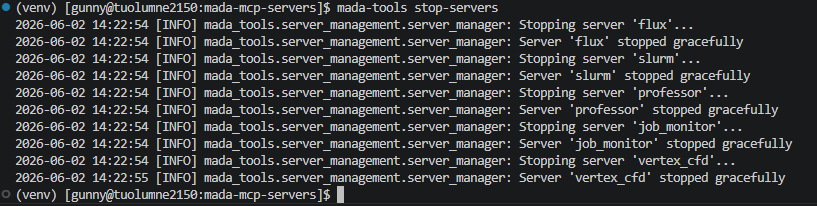
Now, let's stop them all:
After running this command we should see output similar to the following:
Stopping Just SLURM
To show this example, let's first start a bunch of servers:
Now, let's stop just the SLURM server:
After running this command we should see output similar to the following:

Restarting Servers
Servers can be restarted with the mada-tools restart-servers command. Behind the scenes, this command first stops every server and then starts every server. Because it's starting servers, this command requires that you provide a configuration file.
To restart every server in the configuration file, use:
To restart a subset of servers, use the -s or --servers flag. For example:
Here, server1 and server2 must be defined in my_config.json.
Checking Server Statuses
When servers are spun up using the MADA Tools library, their statuses are tracked in a state file. By default, this state file will be located at ~/.mada/server_statuses.json. This can be changed and will be discussed in this section.
These state files track server metadata like their status, the host and port that the server is running on, etc. Possible statuses are:
| Status | Description |
|---|---|
| STOPPED | The server is not running. |
| STARTING | The server is in the process of starting. |
| RUNNING | The server is running and healthy. |
| UNHEALTHY | The server is running but failed health checks. |
| FAILED | The server failed to start or encountered a fatal error. |
The status of servers can be checked using the mada-tools servers-status command. To check the status of all servers that exist in the state file, use:
Using the -c or --config flag you can check the status of servers from a specific configuration:
To check the status of specific servers use the -s or --servers flag. For example:
Here, server1 and server2 must exist in the state file.
To change which state file to read the status from, use the -f or --state-file flag. For example:
Checking Status of All Servers
Let's start all servers using:
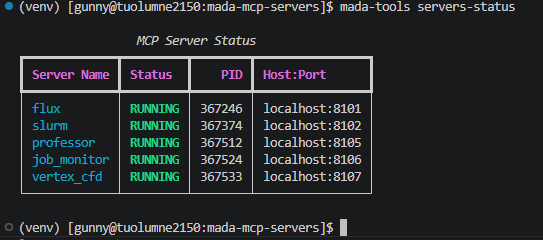
Now we can check that they're running using:
After running this command we should see output similar to the following:
Viewing Available Servers
The MADA library comes with built in MCP servers (see Supported Servers) that will always be available to you. In addition to these built in servers, MADA also comes with the ability to add plugin servers.
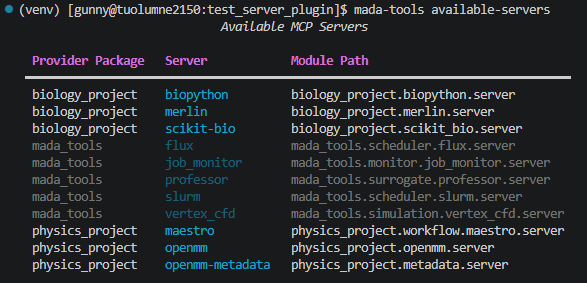
In order to see all of the servers available to you, utilize the mada-tools available-servers command. For instance, say I've installed two plugin server packages: physics_package and biology_package, and in each package there are 3 servers. I can check that I have access to all of these servers with:
In this case, the output looks like so: